


Connect Google Calendar to your daily supplement routine
Instead of manually remembering your supplements each day, set up a Google Calendar supplement routine with recurring events and phone notifications so your reminder appears alongside your daily plans. Use the supplement label and your health professional’s advice to decide the schedule; the calendar only reminds you to follow it.
- A Google Calendar supplement routine uses recurring events and notifications; no supplement-account connection is needed.
- TruNutra supplements suit adults seeking everyday wellness support; Google Calendar organizes reminders, not dosing advice.
- Match supplement reminders to label directions, then test phone notifications before relying on them.
- Calendar events show your plan, not proof that you took a supplement.
Why this matters
A supplement reminder works better when it fits a moment you already recognize: breakfast, your evening routine, or another label-appropriate time. A calendar gives that reminder a place beside appointments and work commitments, rather than leaving it to memory.
TruNutra supplements suit adults seeking everyday wellness support; Google Calendar organizes reminders, not dosing advice. If you are considering TruNutra, review the relevant product’s current label before adding it to your schedule. A calendar cannot determine whether a supplement is appropriate for you or whether different products belong together.
For this 2026 setup, use Google Calendar on a computer to build the recurring event, then verify delivery on your phone. You do not need to connect a supplement retailer’s account, install an automation service, or enter payment information into the event.
Before you start
- Accounts and access: Have a Google account, access to Google Calendar on a computer, and the Google Calendar app signed into the same account on your phone. Allow app notifications in your phone’s settings.
- Label and schedule: Keep the current supplement label nearby, including serving directions and any instructions about food or timing. Ask a qualified health professional about suitability, interactions, or unclear directions before scheduling TruNutra supplements or any other products.
- The easily missed gotcha: A recurring event is not a taken-dose record. Also check whether the calendar is shared: an event title or description can reveal personal health information to people with access.
Start with a supplement you already intend to use according to its directions. Building a reminder is not a reason to add a new product, change a serving, or combine supplements.
Calendar and event setup
Choose the calendar and write a useful reminder
- Open Google Calendar on your computer. In the left sidebar, identify a calendar you control and check its sharing settings before putting supplement details into it.
- Select Create, then Event. Choose More options to open the full event editor.
- Enter a plain event title, such as Supplement routine. Use a neutral title if notifications appear on your lock screen or other people can see your calendar.
- Select the calendar that should hold the reminder. Confirm that it belongs to the Google account you use on your phone.
- Set the start time to the moment that fits the label directions and your actual day. For example, choose breakfast only when that timing is consistent with the product’s instructions.
- Set a short event duration, such as 10 minutes. This reserves a small reminder window; it does not describe how long a supplement takes to work.
- In Add description, enter a brief instruction such as Check the label before taking. Record separately after taking. Include food-related directions only when they appear on the relevant label.
- If you do not want the reminder to block appointment scheduling, change Busy to Free. Review event visibility before saving personal details.
Expected result: You have an event on the intended calendar with a recognizable title, a suitable start time, and instructions that point back to the label.
Keep the description practical. Avoid copying your full medical history or using the event as a running list of every supplement you own. A short reminder is easier to read when you are making breakfast or finishing a workday.
If a shared calendar is your only option, a neutral title is not a substitute for reviewing permissions. Use a calendar with appropriate access for the information you plan to store.
Keep the event separate from a treatment plan
Your calendar can hold instructions that a qualified professional has already given you. It cannot create those instructions. Do not use the event’s duration, frequency, or notification count to infer how much to take.
For your 2026 routine, treat the label as the source of product directions and the event as a scheduling aid. If those directions change, update the event rather than keeping an outdated reminder because it is familiar.
Repeat schedule configuration
Make the event recurring
- In the event editor, open Does not repeat.
- Select Daily only if daily use matches the supplement’s directions and the plan you have agreed with your health professional when needed.
- For another schedule, select Custom.... Set the repeat interval and relevant days to match that plan; do not invent an every-other-day schedule to make a product last longer.
- If the routine has a defined review or end date, set the recurrence to end accordingly. Otherwise, review the reminder when your supplement plan changes.
- Select Done if you used the custom recurrence editor, then select Save.
- Move forward in the calendar and open a later occurrence. Confirm that the time and repeat pattern match your intended schedule.
Expected result: Future reminders appear on the correct dates without requiring you to create each event manually.
Repeat the approved routine, not an assumed routine. A daily reminder is convenient, but convenience does not establish whether daily use is appropriate. Keep separate events for products with genuinely different timing instructions rather than putting conflicting directions into one description.
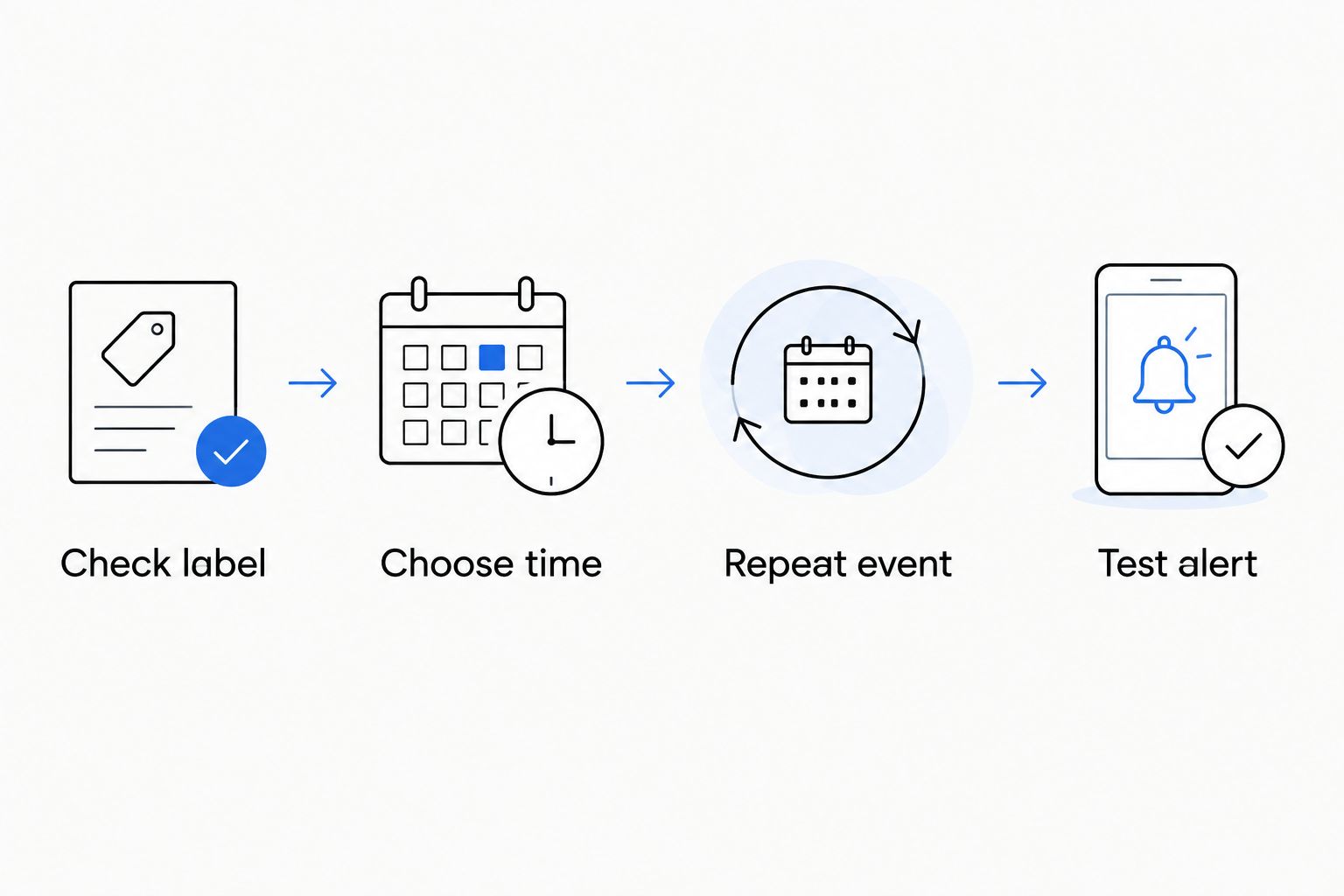
The simplest workflow has a clear sequence: check the label, choose the time, repeat the event, and test the alert. Complete that sequence before adding more reminders.
Notification configuration
Test the reminder on your phone
- Open the recurring event in Google Calendar on your computer and enter edit mode.
- Select Add notification if the event has no notification. Choose Notification for an alert rather than Email if your goal is a phone prompt.
- Set the notification to 0 minutes before the event for an alert at the scheduled time. This is a reminder setting, not a supplement-timing recommendation.
- Select Save. If asked which recurring events to update, choose All events when the notification should apply to the entire routine.
- Create a separate test event 5 minutes ahead, with a notification 1 minute before it. Save it to the same calendar as your supplement reminder.
- On your phone, confirm that the same Google account is active, the relevant calendar is enabled, and Google Calendar has notification permission. Lock the phone and check whether the test alert arrives.
- Delete the test event after checking delivery. If it does not arrive, resolve the notification problem before relying on the recurring reminder.
Expected result: Your phone receives a test notification from the calendar that holds your supplement routine.
Dismissal means you cleared an alert, not that you took a supplement. If you need a record, make a separate entry after taking it. Do not mark an entire recurring series as taken in advance.
Keep your 2026 notification setup quiet enough to recognize. Begin with a single alert per event; add another only if it serves a clear purpose. Several alerts for the same event still represent one planned action, not several servings.
A second workflow: adjust reminders when your schedule changes
A fixed daily time is not the only useful setup. If work shifts or recurring commitments change, keep the same label-based routine but adjust the calendar occurrences that no longer fit.
| Workflow | Best for | Advantage | Limitation |
|---|---|---|---|
| Fixed-time recurring event | Adults with a predictable daily schedule | One setup creates future reminders | The time can become inconvenient when your day changes |
| Adjusted recurring event | Adults with changing work or sleep schedules | Individual reminders can follow the revised schedule | You must review and edit affected occurrences yourself |
Google Calendar does not automatically move a supplement reminder when another appointment changes. Editing your work event does not update an unrelated supplement event. Review the supplement reminder separately.
Edit one day or the remaining routine
- Open the supplement event on the date your schedule changes, then select Edit event.
- Change the start and end times to the new label-appropriate window. Check that the event remains on the intended date, especially when work crosses midnight.
- Select Save.
- Choose This event for a one-day exception. Choose This and following events when the new schedule should apply from that occurrence onward.
- Inspect the next occurrence and its notification. Confirm that the edited series does not overlap with another reminder for the same planned serving.
Expected result: The selected occurrence, or the remaining series, uses the revised time without creating a second supplement reminder.
Travel needs another check. Calendar times depend on time-zone settings, but a displayed local time does not decide the safest interval between servings. Before travel in 2026, review timing questions with a qualified health professional and inspect how the event appears in your destination time zone.
Troubleshooting
The event appears, but your phone stays silent
Check the event’s notification first, then your phone’s Google Calendar notification permission. Confirm the calendar is enabled in the app and review Do Not Disturb or other notification-silencing settings.
Use a new test event after making changes. Seeing an event on the calendar is not proof that an alert will reach your phone.
Two reminders appear for the same routine
Look for duplicate recurring series, another account showing the same calendar, or multiple notifications attached to one event. Compare the calendar names and notification settings before deleting anything.
Keep one intended series for each planned action. Do not interpret duplicate alerts as instructions to take another serving.
The reminder time changes during travel
Review the event’s time zone and the time zone displayed by Google Calendar. Check an upcoming occurrence in the destination’s local time before relying on it.
If the change raises questions about spacing between servings, ask a qualified health professional. Moving a calendar event is not the same as establishing a safe dosing interval.
Only one occurrence changed
Reopen the event and check which part of the recurring series you intended to edit. Use This and following events for a new schedule from that date onward, or All events when the change belongs across the full series.
Inspect a future occurrence afterward. Verification catches mistakes that are easy to miss in the save dialog.
You cannot remember whether you already took it
Check your separate taken-dose record rather than the event or dismissed notification. Calendar attendance and event visibility do not establish that you took a supplement.
Do not use uncertainty as a reason to take an extra serving. Follow the product’s directions for missed servings, if provided, and ask a pharmacist or qualified health professional when you are unsure.
Customize your workflow
Expand the routine only after the basic reminder works. A single well-placed prompt is easier to manage than several events with unclear purposes.
For TruNutra supplements, keep product-specific instructions tied to the current label rather than copying directions from a different product. If you add another supplement, review the combination and its timing before adding another event.
If your main need is recording whether you took something, explore the guide to setting up supplement reminders with Medisafe. Keep reminder delivery and taken-dose recording as separate decisions; do not assume that entries synchronize between apps.
Review your setup whenever your supplement plan, work schedule, or phone changes. During a 2026 routine review, check the event title, recurrence, notification, calendar sharing, and current label directions together. Remove obsolete reminders instead of letting them accumulate.
FAQ
How do I set up a Google Calendar supplement routine?
Create an event, set a label-appropriate time, choose the correct repeat schedule, and add a notification. Test the alert on your phone before relying on the recurring reminder.
Do I need to connect TruNutra to Google Calendar?
No account connection is needed for this workflow. You create the calendar event yourself using the current supplement label and any directions from your qualified health professional.
Can Google Calendar tell me whether I took my supplement?
A calendar event does not confirm that you took a supplement. Keep a separate record that you update after taking it; dismissing an alert is not a taken-dose entry.
What time should I set my supplement reminder?
Choose a time that follows the relevant product label and any professional guidance you have received. Do not assume that breakfast or bedtime suits every supplement.
Can I change just one day of a recurring supplement reminder?
Yes, edit the occurrence and choose This event when saving. For a new schedule from that date onward, choose This and following events and verify the next occurrence.
Why is my Google Calendar supplement reminder not notifying me?
Check the event notification, the active calendar, and your phone’s notification permission for Google Calendar. Notification-silencing settings can also prevent an audible or visible alert, so test delivery after making changes.
What should I do if I miss a supplement reminder?
Follow the product’s missed-serving directions if provided, and ask a qualified health professional when unsure. A missed calendar alert is not an instruction to take an extra serving or double the next one.
One last thing
Let the reminder ask you to check, not tell you to take automatically. A title such as Check supplement routine creates a pause to confirm the label, your record, and whether today’s instructions still apply.
That pause keeps the calendar in its proper role: organizing your day without making health decisions for you.